Making Progressive Web Apps Easily
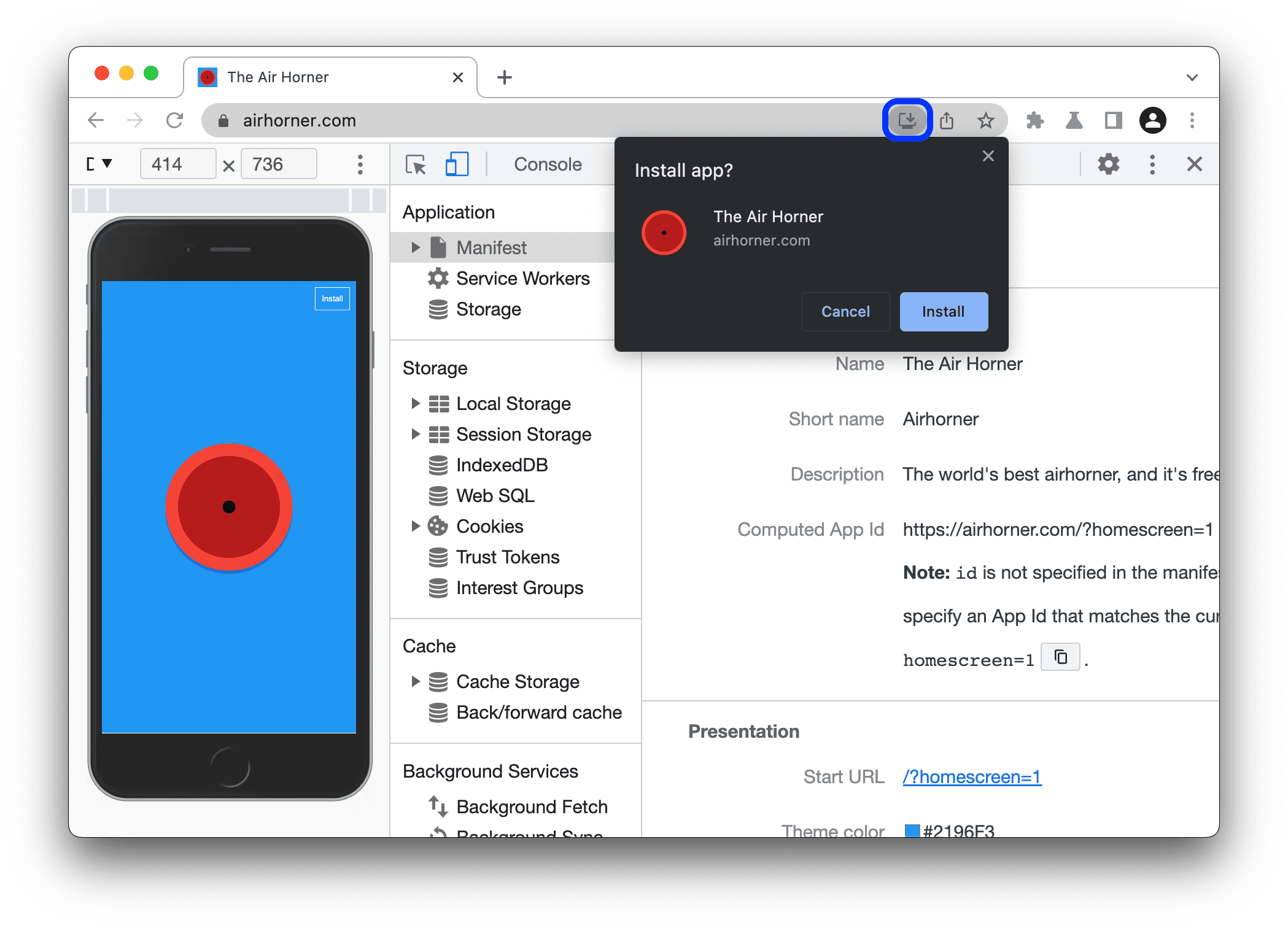
This guide walks you through creating a Progressive Web App (PWA) with a custom install button. The app will:
- Use a service worker to cache files for offline use.
- Provide an additional install button for adding the app to a device’s home screen.
- Include a manifest.json file to define app metadata.
1) Project Structure
Your project should have the following files:
/your-project/
│── index.html
│── manifest.json
│── service-worker.js
│── icon-192.png  (App icons)
│── icon-512.png2) Creating index.html
This is the main page of your web app, which includes:
- A reference to
manifest.json - The install button (
#install-button) - JavaScript to handle installation prompts
index.html
- Add
<link rel="manifest" href="manifest.json">in your<head>. - Add
<button id="install-button" hidden>Install App</button>(the (initially hidden) install app button) somewhere (your choice) in your<div>. - Add the below
<script>above your main<script>.
document.addEventListener('DOMContentLoaded', function () {
	// Register the service worker
	if ('serviceWorker' in navigator) {
		navigator.serviceWorker.register('service-worker.js');
	}

	let deferredPrompt;
	const installButton = document.getElementById('install-button');

	// Listen for the install prompt
	window.addEventListener('beforeinstallprompt', (e) => {
		e.preventDefault();
		deferredPrompt = e;
		installButton.hidden = false;
	});

	// Handle install button click
	installButton.addEventListener('click', async () => {
		const isStandalone =
			window.matchMedia('(display-mode: standalone)').matches || window.navigator.standalone;

		if (isStandalone) {
			console.log('App is already installed');
			return;
		}

		if (deferredPrompt) {
			deferredPrompt.prompt();
			const { outcome } = await deferredPrompt.userChoice;
			deferredPrompt = null;
			console.log(
				outcome === 'accepted' ? 'User accepted install prompt' : 'User dismissed install prompt'
			);
		} else {
			if (window.matchMedia('(display-mode: browser)').matches) {
				window.location.assign('chrome://apps/');
			}
		}
	});
});
Below is an example index.html file:
<!DOCTYPE html>
<html lang="en">
	<head>
		<meta charset="UTF-8" />
		<meta name="viewport" content="width=device-width, initial-scale=1.0" />
		<title>My PWA</title>
		<link rel="manifest" href="manifest.json" />
	</head>
	<body>
		<h1>Welcome to My Web App</h1>
		<button id="install-button" hidden>Install App</button>

		<script>
			document.addEventListener('DOMContentLoaded', function () {
				// Register the service worker
				if ('serviceWorker' in navigator) {
					navigator.serviceWorker.register('service-worker.js');
				}

				let deferredPrompt;
				const installButton = document.getElementById('install-button');

				// Listen for the install prompt
				window.addEventListener('beforeinstallprompt', (e) => {
					e.preventDefault();
					deferredPrompt = e;
					installButton.hidden = false;
				});

				// Handle install button click
				installButton.addEventListener('click', async () => {
					const isStandalone =
						window.matchMedia('(display-mode: standalone)').matches || window.navigator.standalone;

					if (isStandalone) {
						console.log('App is already installed');
						return;
					}

					if (deferredPrompt) {
						deferredPrompt.prompt();
						const { outcome } = await deferredPrompt.userChoice;
						deferredPrompt = null;
						console.log(
							outcome === 'accepted'
								? 'User accepted install prompt'
								: 'User dismissed install prompt'
						);
					} else {
						if (window.matchMedia('(display-mode: browser)').matches) {
							window.location.assign('chrome://apps/');
						}
					}
				});
			});
		</script>

		<script>
			// Your main script
		</script>
	</body>
</html>3) Setting Up the Service Worker
The service worker caches important files and serves them when offline. Modify this if you need custom caching behavior. Note: The "/" and "/index.html" should be pointing to your root directory and index.html, if you are using GitHub Pages or have a subdomain, you may need to change those two.
service-worker.js
self.addEventListener('install', (event) => {
	event.waitUntil(
		caches.open('v1').then((cache) => {
			return cache.addAll(['/', '/index.html']);
		})
	);
});

self.addEventListener('fetch', (event) => {
	event.respondWith(
		caches.match(event.request).then((response) => {
			return response || fetch(event.request);
		})
	);
});installevent: Caches essential files (e.g.,index.html).fetchevent: Serves files from cache when offline.
4️) Creating the Manifest File
The manifest.json file provides metadata about the app.
manifest.json
name – Full app name.
short_name – A shorter version of the name (no spaces and/or very few characters). It appears under the app icon when installed.
start_url – The URL the app loads when opened. Usually set to “start_url”: ”/” (root) if your app is at the main domain. If hosted on a subdirectory, use “start_url”: “/appname/“.
display – Defines how the app launches:
- standalone → Looks like a native app (no browser UI).
- fullscreen → Completely full screen (used for games).
- minimal-ui → Small browser controls (back/forward buttons).
- browser → Opens in a normal web browser tab.background_color – Background color when the app loads (before content appears).
theme_color – Status bar color.
icons – App icons (192px & 512px required and PNG is recommended, although you can use the same file for both sizes.)
{
	"name": "My Web App",
	"short_name": "WebApp",
	"start_url": "/",
	"display": "standalone",
	"background_color": "#ffffff",
	"theme_color": "#000000",
	"icons": [
		{
			"src": "/icon-192.png",
			"sizes": "192x192",
			"type": "image/png"
		},
		{
			"src": "/icon-512.png",
			"sizes": "512x512",
			"type": "image/png"
		}
	]
}5️) Testing the PWA
Run a local server (required for service workers).
If you use Python:
- install instructions and better guide
- Run:
cd /path/to/project python -m http.server 8000 - Open
http://localhost:8000/in a browser.
If you use Node:
- install instructions and better guide
- Run:
npx http-server /path/to/project -o -p 8000 - the file will be opened automatically (due to the
-oflag) in your browser.
Check installation
- Open Developer Tools (
F12orCtrl+Shift+I). - Go to Application > Manifest to check if it’s detected.
- Try installing via the Install App button or click the browser install popup (only in Chromium based and Firefox based browsers).
- Open Developer Tools (
Test offline support
- Go to Application > Service Workers and enable Offline mode.
- Refresh the page. It should still load from cache.
Conclusion
You now have a fully functional PWA with:
- A service worker for offline support
- A manifest.json for app metadata
- A custom install button just in case of browser differences!